Clearing default boilerplate entries
Clearing default boilerplate entries
By default, ClaimMaster is shipped with some example boilerplate entries. Starting with release v. 2025.5, boilerplate entries are stored in "ClaimMater Boilerplate.dotx" file, while they were previously stored in "ClaimMaster Boilerplate.docx" file. In case you've previously created and stored your own boilerplate entries in other documents (e.g., ClaimMaster Boilerplate.docx or other files), you can quickly remove the default entries from ClaimMater Boilerplate.dotx and load your own entries from the other locations, so as to avoid redundant entries in the boilerplate list. To do that, follow these steps:
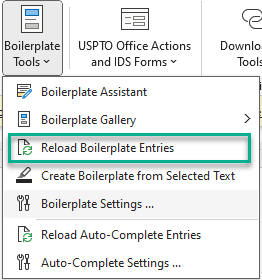
1) Open ClaimMaster Boilerplate.dotx file for editing in Word. You can do it from ClaimMaster, by clicking on Boilerplate Settings:

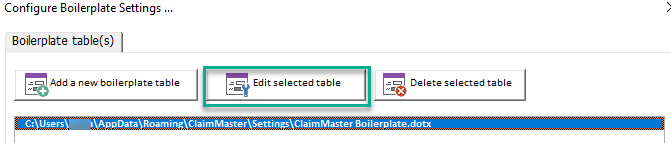
Then, in Boilerplate Settings, select the main "ClaimMaster Boilerplate.dotx" file that is always shown first in the list and then click on "Edit selected table" button. ClaimMaster Boilerplate.dotx file will open in Word.
Alternatively, you can just directly open the ClaimMaster Boilerplate.dotx file for editing in Word. That file is normally located in C:\Users\[Your Username]\AppData\Roaming\ClaimMaster\Settings\ directory.
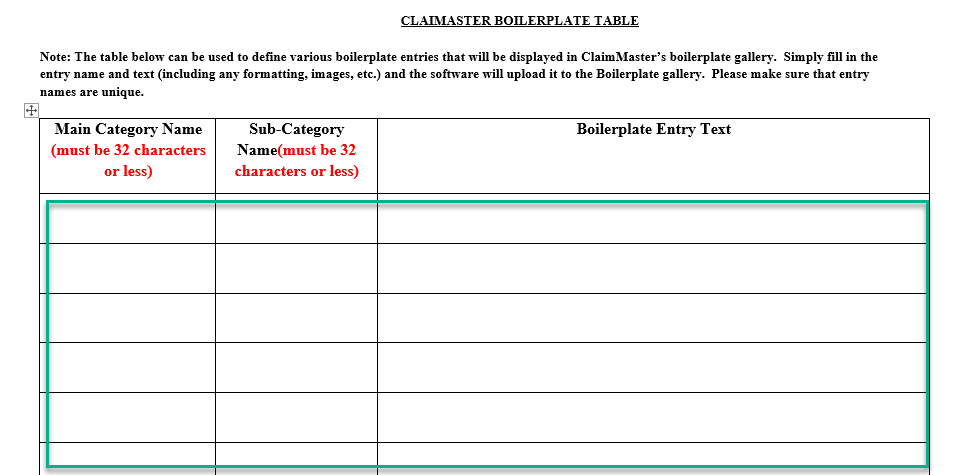
2) Clear out all entry rows you don't need from the table, making sure not to delete the table itself (i.e., make sure the remaining table has at least the header row intact). Then click Ctrl+S to save the file or select "Save" from the Word->File menu.
3) Finally, make sure to reload the boilerplate settings. All of the entries you've cleared from the main ClaimMaster Boilerplate.dotx file will no longer load, leaving you with just the entries from other configured locations.