Importing new patent drafting templates
Importing new patent drafting templates
ClaimMaster lets you quickly import new patent drafting templates from another file (e.g., from the latest update or from file shared by a colleague) into your currently configured drafting templates.
- Importing newly shipped templates from the latest installer - when you reinstall ClaimMaster, you can specify whether to overwrite your existing patent drafting templates or keep them unchanged via the installation screen:

If you check the box above, your existing patent drafting templates will be reset (a backup copy will be made). If you leave that box unchecked, your existing templates will not be reset. In this case, you can add new templates shipped with the latest ClaimMaster installer to your existing template file using the steps outlined below. Note that a copy of default patent drafting templates shipped with ClaimMaster are located in C:\Program Files (x86)\ClaimMaster\Settings\Patent Drafting\patent_drafting_templates.xml file (if you have 64-bit Windows) and C:\Program Files\ClaimMaster\Settings\Patent Drafting\patent_drafting_templates.xml file (if you have 32-bit Windows).
Getting Started
To import new templates from another file, from the ClaimMaster Ribbon, click on the Patent Drafting Tools menu, then select Patent Drafting Settings at the bottom of menu:

Next, in the patent drafting settings window that comes up, click on Import templates from a file button (at the top right corner):

Next, you will be asked to select an xml file containing other patent drafting templates. For example, this could be a file shared by a colleague or the new set of templates distributed with the latest update of ClaimMaster. Note that a copy of default patent drafting templates shipped with ClaimMaster are located in C:\Program Files (x86)\ClaimMaster\Settings\Patent Drafting\patent_drafting_templates.xml file (if you have 64-bit Windows) and C:\Program Files\ClaimMaster\Settings\Patent Drafting\patent_drafting_templates.xml file (if you have 32-bit Windows).
Once you pick a file, you will be presented with a list of all templates available in that file:
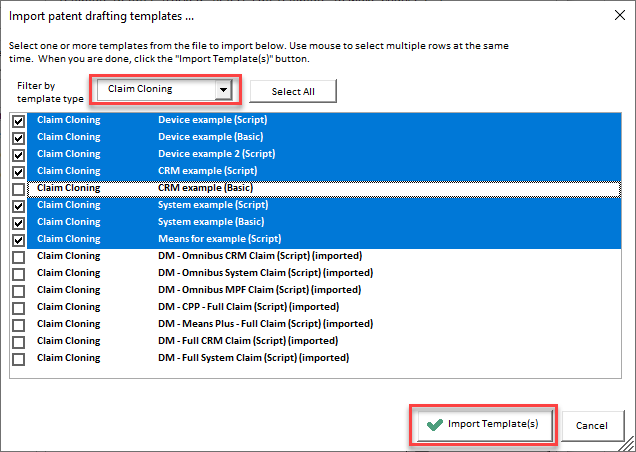
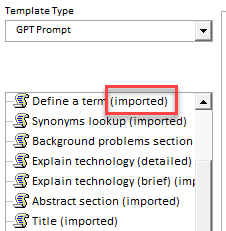
Select all templates you'd like to import with a mouse (you can also filter the list of available templates by type using a drop-down menu), then click on Import Template(s) button to finish import of the templates selected in the table above. New templates will be added to your current templates with (imported) tag added to their name:
Click Save Settings to save imported templates and finish the process. You can now use the imported templates in your patent drafting tools.