LLM prompt templates
Configuring LLM prompt templates
To edit LLM prompt templates, perform the following steps inside the Patent Drafting Preferences window:
- Switch Template Type to "LLM Prompt" option:

- Select one of the configured document shell templates and then click on the Edit button in the lower right corner of the preferences window (if you don't have any such templates configured or need to make a copy, create a new one using the Add or Duplicate buttons shown above):

- Edit the selected LLM prompt template settings, then click on Accept Edits to save:
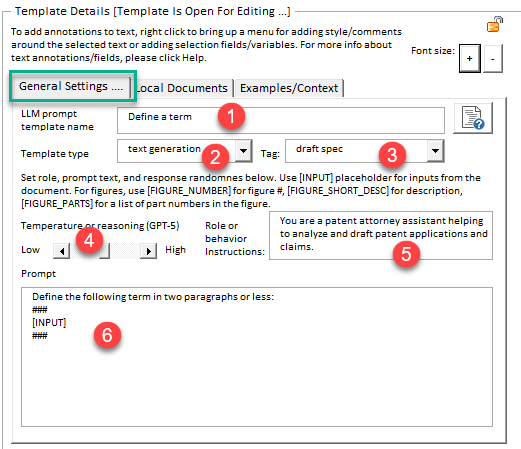
The following options are available from the General Settings window:
- Specifies the name of the LLM prompt template.
- Specifies the template type for the prompt. The prompt can be for the following operations:
- text generation
- image generation
- post-processing/rewriting of text with LLM. If this option is checked, the template will appear in the drop-down list in the Rewrite text with LLM tool.
- Office Action analysis; the template will appear in the drop-down list in the GenAI section of the OA Analysis tool.
- proofreading - used for patent proofreading of documents
- Specifies the text tag for the template (e.g., "claim rewriting", "spec drafting", etc.), which lets you easily classify templates into groups for easier sorting/review.
- Use this slider to make LLM responses more or less random/deterministic. Corresponds to the temperature setting or reasoning level (GPT-5) for the LLM. Higher values of temperature will make LLM output more random/creative, while lower values like.will make it more focused and deterministic. It's a good practice to always review LLM responses for factual correctness, especially if you are using LLM prompts with settings for higher response randomness/creativity.
- Specifies the role/behavior for the LLM prompt. The default behavior is "You are a patent attorney/agent", but other instructions can be used.
- Specifies the text of the LLM prompt. There many different operations LLM can perform on the passed-in text, but some of the interesting things you can ask LLM to do include:
- Explain or define a technical term
- Re-write a text portion more eloquently
- Write a paragraph or two explaining the state of problems with the current technology
- Generate sample data tables for you
- Draft some portions of the application based on the passed-in subject matter, such as title, background, etc.
Use [INPUT] field as a placeholder that will be enriched from the document data by ClaimMaster when the template + input are selected in the Generate text with LLM tool. The following inputs are available in that tool (we recommend that you do not pass sensitive data as input unless you review and are OK with OpenAI's data usage policies):
- Special inputs:
- Text in the preview window - allows applying LLM transformations on the results produced by previous LLM requests
- Selected text in the document
- Surrounding word/sentence/paragraph at the cursor's current position
- All document text
- Part names extracted from the document
- Acronyms extracted from the document
- Terms extracted from claims
- Claim text and individual limitations
In addition, the following replacement fields are available specifically when images (e.g., figures, document pages) are being passed to LLM for processing:
- [FIGURE_NUMBER] - specifies the figure #.
- [FIGURE_SHORT_DESC] - specifies short description of the figure that would be extracted from the specification, if available.
- [FIGURE_PARTS] - specifies the list of part #s extracted from the figures or part names + numbers extracted from the Specification (item 2).
- [CUR_DOCUMENT_TEXT] - specifies the entire text of the currently open Word document
- [CUR_DOCUMENT_TEXT_CLAIMS] - specifies the text of the claims found (if any) in the currently open Word document
- [CUR_DOCUMENT_TEXT_DETDESC] -specifies the text of the Detailed Description section found (if any) in the currently open Word document
- [CUR_DOCUMENT_TEXT_ABSTRACT] -specifies the text of the Abstract found (if any) in the currently open Word document
- [CUR_DOCUMENT_TEXT_FIGDESC] - specifies the text of the Brief Figure Descriptions section found (if any) in the currently open Word document
- [CUR_DOCUMENT_TEXT_FULLSPEC] - specifies the text of the entire Specification (except claims) found the currently open Word document
- [ATTACHED_DOCUMENT_TEXT] - specifies the entire text of the document attached to the prompt
- [ATTACHED_DOCUMENT_TEXT_CLAIMS] - specifies the text of the claims found (if any) in the document attached to the prompt
- [ATTACHED_DOCUMENT_TEXT_DETDESC] -specifies the text of the Detailed Description section found (if any) in the document attached to the prompt
- [ATTACHED_DOCUMENT_TEXT_ABSTRACT] -specifies the text of the Abstract found (if any) in the document attached to the prompt
- [ATTACHED_DOCUMENT_TEXT_FIGDESC] - specifies the text of the Brief Figure Descriptions section found (if any) in the document attached to the prompt
- [ATTACHED_DOCUMENT_TEXT_FULLSPEC] - specifies the text of the entire Specification (except claims) found in the document attached to the prompt
The following replacement fields are available for patent proofreading prompt templates:
- [CLAIMS_TEXT] - specifies the text of the claims.
- [SPECIFICATION_TEXT] - specifies the text of the specification.
Note: You can tell LLM where the instruction portion ends and the context begins by using separators ### or ---. Doing so ensures that LLM distinguishes between the instructions and the rest of the text input, especially if the size of the text section is large. For example, you can configure LLM templates in ClaimMaster with the [INPUT] or [FIGURE_XXX] section separated from the instructions as follows:

Linking your prompt template to a particular local document workspace
ClaimMaster lets you link your prompt template to a configured local document workspace. This lets you use a local database of documents to perform Retrieval Augmented Generation (RAG) when generating text. Specifically, RAG is the process of retrieving relevant contextual information from a database of document snippets and passing that information to the LLM alongside the user’s prompt. This information is used to improve the LLM’s generated output by augmenting the model’s base knowledge. To link your LLM template to a particular workspace, switch to the Local Documents tab in the template settings.

The following options are available from the Local Documents window used for specifying a local document workspace for the LLM prompt:
- Use this drop-down menu to specify the pre-configured local document workspace to be used for the prompt.
- Specify which sections of local documents (e.g., Background, Abstract, etc.) should be used when pulling data from the database.
- Open the configured workplace settings.
- Specify the max # of text snippets that would be pulled from the vector database, so as to limit the amount of data to be sent to LLM
- This window specifies the specific RAG prompt/instructions that will be used when providing context to LLM (along with the original prompt). [RAGDATA] placeholder field will be used to populate the retrieved context with the text snippets returned from the workspace in the instructions to LLM. You can further use ### separators to distinguish the returned text snippets from the instructions to LLM.

You can control how the LLM interprets and uses information from your provided context. For example:
- If the prompt is "use ONLY the following information to answer the posed question: ### [RAGDATA]###", then the LLM will use only information in your snippets to generate the response.
- On the other hand, if your RAG prompt is "use the following information in addition to you knowledge to answer the posed question: ### [RAGDATA]###", then LLM with supplement its response with your provided context, but will not rely on it exclusively.
Notably, by default ClaimMaster will attempt to pull text snippets from the database that are the most contextually similar to your prompt. However, in some cases you may want to get all contents of a particular workspace that match a particular section filter (e.g., all Background sections). In this case, you can use the wildcard character "*" your in your regular LLM prompt, as shown below. When ClaimMaster sees "*" in the prompt, it will not attempt to find the closest match from the vector database in your prompt, but rather will return all entries (limited by the # of snippets) from the specified workspace that match the specified document section filter.


Adding examples and additional context to LLM prompts
To possibly improve the quality of LLM output you can also pass example output or additional context as part of LLM prompts. Note - you need to edit the contents of this window before sending text prompts to LLM. This additional example/context text would be configured as part of the LLM template - to add example/context, switch to the "Example/Context" tab when editing a LLM prompt:
