Configuring GPT/LLM templates to use local workspaces
Setting up local document workspaces with GPT/LLM templates
ClaimMaster GPT/LLM patent drafting tools can use a local database of document sections to perform Retrieval Augmented Generation (RAG) when generating text. RAG is the process of retrieving relevant contextual information from a database of document snippets and passing that information to the LLM alongside the user’s prompt. This information is used to improve the LLM’s generated output by augmenting the model’s base knowledge. The RAG architecture in ClaimMaster uses semantic searching to find contextually relevant data based on the conceptual similarity of the input prompt. Semantic searches go beyond standard keyword searches, which rely on the occurrence of specific index words in the search input. Instead, semantic searches convert search queries to their mathematical vector format (i.e., called vector embeddings) and use those vectors to search the vector database for the closest conceptual matches. As a result, when you send a prompt to GPT/LLM, ClaimMaster will first query its local vector database that contains your workspaces to find the most similar text snippets for your prompt and will then add those snippets to the final prompt of the configured GPT/LLM source to improve its output results.
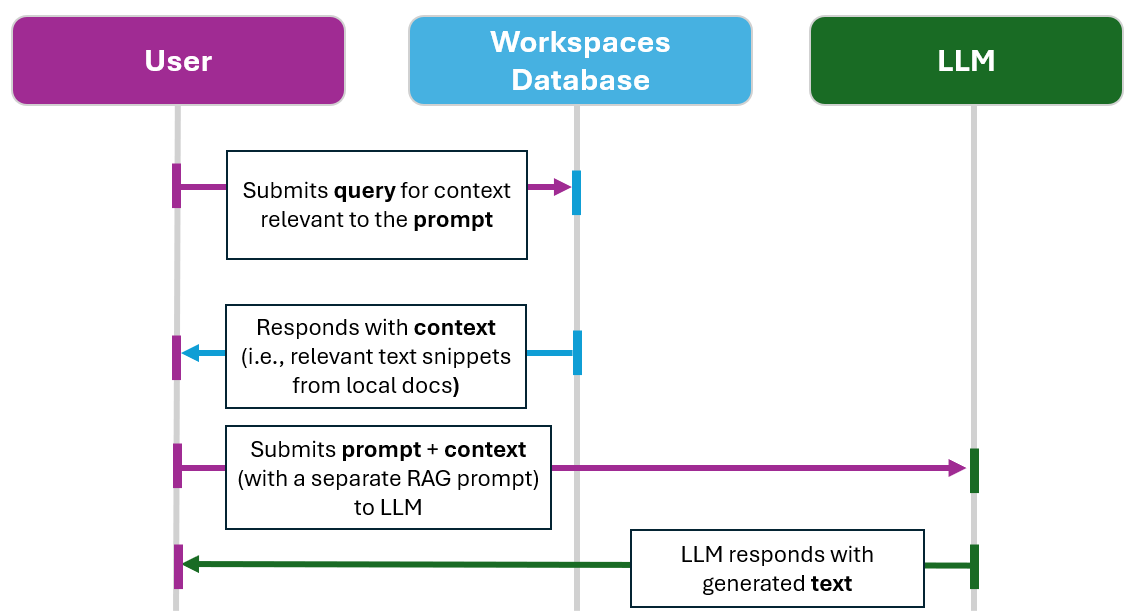
Basic ClaimMaster RAG workflow
The use of RAG is very useful for GenAI-enhanced patent drafting, as it allows you to pass specific document sections from previous applications (e.g., Background, Abstract, claims, etc.) to the LLM to get better output results from the model. For example, if you are drafting a patent application for a specific client in semiconductor industry, the default GPT/LLM is able to draft text using its base knowledge of semiconductors, but it might not know enough about the client's niche area and it also doesn't have access to the examples or specific term definitions used in the previous applications for the same client. With RAG, you can get much better results by setting up a document workspace that includes sections of your client's previous applications, enabling the GPT/LLM to use that context to generate more relevant output for this client. When you use the document workspaces feature with ClaimMaster, RAG is being performed automatically for each prompt that is configured to use that document workspace.
To setup your GPT prompts to use local document workspaces, you'll need to configure at least one workspace and then select it when sending prompts to GPT/LLM:
1. Make sure you have valid RAG embeddings and LLM/GPT sources configured in GPT/LLM settings (and they use the same service, such as OpenAI or Ollama):

2. Configure a local document workspace with some documents.

3. Optional - configure your GPT/LLM prompts to use one of the specified local document workspaces under the Local Documents tab, as shown here. This will be the default workspace for this prompt template. You can also directly set the desired workspace when before you send the drafting prompt to your GPT/LLM source.
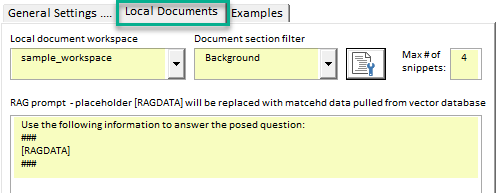
As part of specifying the workspace settings for the prompt, you can set the following parameters:
- The max # of text snippets that would be pulled from the vector database, so as to limit the amount of data to be sent to GPT/LLM
- The specific RAG prompt/instructions that will be used when providing context to GPT/LLM (along with the original prompt).
- [RAGDATA] placeholder field will be used to populate the retrieved context with the text snippets returned from the workspace in the instructions to LLM. You can further use ### separators to distinguish the returned text snippets from the instructions to LLM. In particular, you can control how the LLM interprets and uses information from your provided context. For example:
- If the prompt is "use ONLY the following information to answer the posed question: ### [RAGDATA]###", then the LLM will use only information in your snippets to generate the response.
- On the other hand, if your RAG prompt is "use the following information in addition to you knowledge to answer the posed question: ### [RAGDATA]###", then LLM with supplement its response with your provided context, but will not rely on it exclusively.
4. When generating text with LLM, select the local workspace (and other related workspace settings) as part of the configured GPT/LLM prompt. You can use either the default workspace specified in the template or pick another one using the drop-down menu:
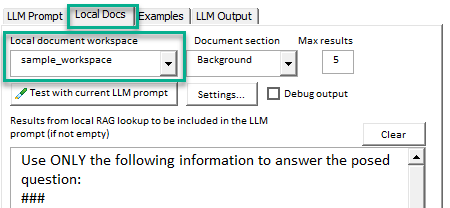
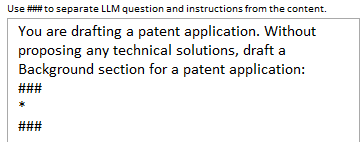
- Notably, by default ClaimMaster will attempt to pull text snippets from the database that are the most contextually similar to your prompt. However, in some cases you may want to get all contents of a particular workspace that match a particular section filter (e.g., all Background or Abstract sections). In this case, you can use the wildcard character "*" your in your regular GPT/LLM prompt, as shown below. When ClaimMaster sees "*" in the prompt, it will not attempt to find the closest match from the vector database in your prompt, but rather will return all entries (limited by the # of snippets) from the specified workspace that match the specified document section filter.