Generate text with OpenAI's GPT and other LLMs
Generating text with OpenAI GPT or local LLMs [+Drafting Option Only]
ClaimMaster's patent drafting tools let you store and invoke helpful GPT/LLM prompts enriched with the text from your document to generate, rewrite, and summarize text and attached files, such as figures or other documents. To do so, ClaimMaster connects via API to either (1) OpenAI's or Microsoft Azure OpenAI's GPT services or (2) to a desktop application running a local LLM, such as Ollama or LM Studio. When contacting a cloud-based GPT service, ClaimMaster will send and receive data to/from the selected GPT service using API directly from the computer where ClaimMaster is installed, without sending data for processing to any intermediate servers. According to OpenAI API policies and/or Azure OpenAI API policies, the use of API ensures that your prompts (inputs), completions (outputs), and any other transmitted data will not be available to other customers and will not be used to improve GPT models. To further enhance data privacy, you can also configure ClaimMaster with your own API key and endpoint (Azure) to connect to private models set up in OpenAI or Azure OpenAI services. If ClaimMaster is configured to access private GPT models using your API keys, those keys will be always stored in encrypted format on a machine where ClaimMaster is installed.
When running a local LLM, your data remains completely private and is not sent to the cloud for processing.
If contacting a cloud-based GPT-service, you are responsible for determining whether OpenAI API policies and/or Azure OpenAI API policies suit your needs, satisfy your organization's security requirements, and assume all risk for using GPT services with your confidential data. All GPT features in ClaimMaster will only transmit data to GPT/LLM after your explicit command. You control exactly what data is being sent to GPT/LLM. It's also a good practice to always review GPT/LLM responses for factual correctness, especially if you are using prompts with settings for higher response randomness/creativity.
To access GPT tools in ClaimMaster, follow these steps:
Getting Started
- From the ClaimMaster Ribbon, click on the Patent Drafting Tools menu, then select Generate Text with GPT:

Feature Options
Once you select the feature from the menu above, the patent drafting window will come up. It will be "docked" to the left side of your Word document when it launches, unless automatic docking of patent drafting windows is disabled in Patent Drafting Preferences (i.e., the "Dock drafting windows" checkbox is unchecked). The following operations are available for this feature:

- Click this button to review GPT data usage policies.
- Use this tab to select one of the inputs from the document to enrich the stored GPT prompt template via the [INPUT] variable. The following inputs are available
- Special inputs:
- Text in the preview window - allows applying GPT transformations on the results produced by previous GPT requests
- Selected text in the document
- Surrounding word/sentence/paragraph at the cursor's current position
- All document text
- Claims text (if any) found in the currently open document
- Abstract text (if any) found in the currently open document
- Detailed Description text (if any) found in the currently open document
- Brief Descriptions of Drawings text (if any) found in the currently open document
- Full specification (without claims) found in the currently open document
- Part names (and optionally numbers) extracted from the document
- Acronyms extracted from the document
- Terms extracted from claims
- Claim text and individual limitations
- Click on one of the rows in the table to select the specific [INPUT] value to be inserted into the GPT prompt
- Specifies the GPT/LLM prompt template, where the [INPUT] variable will be populated based on the selection from the left-side table (item 3). You can specify any prompt you wish - for example, helpful prompt include directions for GPT/LLM to define or explain terms, add more information, summarize text portions, or draft certain section of the patent document using provided inputs. However, do not pass sensitive data as input unless you review and are OK with GPT data usage policies. There many different operations GPT/LLM can perform on the passed-in text, but some of the interesting things you can ask GPT to do include:
- Explain or define a technical term
- Re-write a text portion more eloquently
- Write a paragraph or two explaining the state of problems with the current technology
- Generate sample data tables for you
- Draft a section of the application based on the passed-in subject matter, such as title, background, etc.
- Use the filter field to limit the list shown in the template table only to those templates that at least partially match the filter. To remove the filter, click on the "Clear" button.
- Click this button to open settings for GPT prompts.
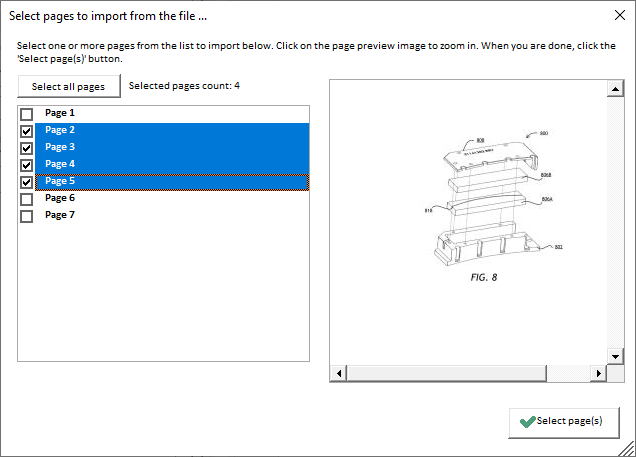
- Press this button to add one or more pages (as images) from a file to your LLM prompt. The pages could contain figures (PDF, PPT, Visio, Word, JPG, PNG) or pages from some other document (Word, PDF) that you want LLM to analyze. If you are providing a multi-page file, you'll be presented with a selection window where you can select one or more pages to include in the LLM prompt, as shown below. You can select a single or multiple pages (with Ctrl+Left mouse click) when using GPT as the LLM source and only a single figure when using local LLMs. Please note that most LLMs impose a limit on the number of attached images (currently at 10 for GPT-4o).
- This field shows the address of the selected file.
- Press this button to remove the selected figure(s) from being added to the GPT prompt.
- Press this button to select another set of pages from the same file.
- Press this button to see the currently selected, full-sized selected page(s) that will be sent to GPT as part of the prompt.
- Shows the preview of the final GPT/LLM prompt with the input data inserted. This will be the prompt that will be sent to GPT/LLM. You can make edits/adjustments to this prompt directly in the window. If an attached file is specified, ClaimMaster will automatically attempt to extract the following information from the figures/specification and fill-in these placeholders in the template to improve GPT/LLM output accuracy:
- [FIGURE_NUMBER] - specifies the figure #.
- [FIGURE_SHORT_DESC] - specifies short description of the figure that would be extracted from the specification, if available.
- [FIGURE_PARTS] - specifies the list of part #s extracted from the figures or part names + numbers extracted from the Specification (item 2).
- [CUR_DOCUMENT_TEXT] - specifies the entire text of the currently open Word document
- [CUR_DOCUMENT_TEXT_CLAIMS] - specifies the text of the claims found (if any) in the currently open Word document
- [CUR_DOCUMENT_TEXT_DETDESC] -specifies the text of the Detailed Description section found (if any) in the currently open Word document
- [CUR_DOCUMENT_TEXT_ABSTRACT] -specifies the text of the Abstract found (if any) in the currently open Word document
- [CUR_DOCUMENT_TEXT_FIGDESC] - specifies the text of the Brief Figure Descriptions section found (if any) in the currently open Word document
- [CUR_DOCUMENT_TEXT_FULLSPEC] - specifies the text of the entire Specification (except claims) found the currently open Word document
- [ATTACHED_DOCUMENT_TEXT] - specifies the entire text of the document attached to the prompt
- [ATTACHED_DOCUMENT_TEXT_CLAIMS] - specifies the text of the claims found (if any) in the document attached to the prompt
- [ATTACHED_DOCUMENT_TEXT_DETDESC] -specifies the text of the Detailed Description section found (if any) in the document attached to the prompt
- [ATTACHED_DOCUMENT_TEXT_ABSTRACT] -specifies the text of the Abstract found (if any) in the document attached to the prompt
- [ATTACHED_DOCUMENT_TEXT_FIGDESC] - specifies the text of the Brief Figure Descriptions section found (if any) in the document attached to the prompt
- [ATTACHED_DOCUMENT_TEXT_FULLSPEC] - specifies the text of the entire Specification (except claims) found in the document attached to the prompt
- Use this slider to make GPT responses more or less random/deterministic. Corresponds to the temperature setting for the GPT. Higher values will make GPT output more random/creative, while lower values like.will make it more focused and deterministic. It's a good practice to always review GPT responses for factual correctness, especially if you are using GPT prompts with settings for higher response randomness/creativity.
- Press this button to open OpenAI's GPT API settings window.
- Press this button to send the prompt from the preview window (item 7) to GPT. As mentioned above, ClaimMaster does not automatically access OpenAI's or Azure OpenAI GPT services using API. You will only send a prompt to GPT when you press this button.
Specifying a local document workspace to be used for the GPT/LLM prompt (RAG)
This tab allows you to specify a particular local document workspace for the prompt as part of ClaimMaster's RAG architecture. In particular, ClaimMaster uses semantic searching to find contextually relevant data based on the conceptual similarity of the input prompt. When you send a prompt to GPT/LLM, ClaimMaster will first query its local vector database that contains your workspaces to find the most similar text snippets for your prompt and will then add those snippets to the final prompt of the configured GPT/LLM source to improve its output results. RAG instructions are also a part of the template, so you can tell GPT to use ONLY the provided text snippets when forming a response or supplement the response with the information from the snippets, while also relying on its own knowledge.

The following options are available from the Local Docs window:
- Use this drop-down menu to specify the pre-configured local document workspace to be used for the prompt.
- Specify which sections of local documents (e.g., Background, Abstract, etc.) should be used when pulling data from the database.
- Specify the max # of text snippets that would be pulled from the vector database, so as to limit the amount of data to be sent to GPT/LLM
- Press this button to test the current LLM prompt with the specified workspace. When you click this button, ClaimMaster will pull contextually relevant data from the snippet database and show the results in the text window below (item 7).
- Press this button to open the document workspace settings.
- Check this box to enable debug output of the prompt lookup, which provides additional information about each retrieved snippet (e.g., similarity score, document source, etc.).
- This text window shows the preview or the result of the RAG lookup. You can also make direct edits to the text in this window and then when you send a prompt to GPT/LLM, the edited contents of this window will be used to generate additional context for the prompt.
Providing additional examples/context to GTP/LLM for rewriting
To further improve the quality of GPT/LLM output you can also pass example output or additional context as part of GPT/LLM prompts. Note - you need to edit the contents of this window before sending text prompts to GPT. This additional example/context text would be configured as part of the GPT/LLM template - to add example/context, switch to the "Example/Context" tab when editing a GPT/LLM prompt:

Reviewing/editing GPT/LLM output
This tab shows the results returned by GPT/LLM service based on the provided prompt or any returned error messages, if any. You can make further text modifications to the results directly in this window.

The following options are available from the GPT/LLM Output window:
- This text field shows the results returned by GPT/LLM service based on the provided prompt or any returned error messages. You can make further text modifications to the results directly in this window
- Click this button to see the differences between the text passed to GPT/LLM and the output text produced by GPT/LLM. This is a very helpful feature to pick up on any subtle differences between GPT/LLM input and output.

- Press this button if you like the results produced by the specific GPT/LLM prompt. It will allow you to turn this prompt and associated instructions/example into a template prompt within ClaimMaster.
- Press this button to copy the output of the GPT/LLM to clipboard.
- Specify whether you want to insert the output of GPT/LLM for a particular section in the document (e.g., "Title", "Background", etc.)
- Press this button to insert the contents of the preview window (item 1) into the open Word document at the location of the cursor in the document.