LLM configuration settings
LLM Configuration Settings
If you have your own account with OpenAI, Azure OpenAI, or Anthropic, ClaimMaster lets you pass your API account information for completing LLM prompts (you'll incur your own costs for the generated text). You may find this option beneficial as you'll be able to use your custom end-points (Azure) or different/advanced LLM models, as well as set the max limit on the tokens to generate more text than allowed ClaimMaster's default settings.
In addition, you can connect ClaimMaster to use a local LLM via a desktop application, such as Ollama. When running a local LLM, your data remains completely private and is not sent to the cloud for processing. If you have data privacy concerns about cloud-based LLM services, using such a local LLM in combination with ClaimMaster is an excellent alternative to GPT that lets you have a completely private AI-enhanced patent drafting solution. It’s free, secure, and lets you access a number of powerful open-source LLMs to help with patent drafting. All you really need is a reasonably fast PC to run Ollama or LM Studio smoothly. For the best results, it's recommended to install these programs on a modern PC with Windows 10/11, a 4 or 8-core processor, an SSD with 12-50 GB of free space for models, and plenty of RAM (8GB is the bare minimum but 16+ GB is really recommended).
You will start the of set LLM API settings in ClaimMaster's preferences:

In the following window, you can the following items.
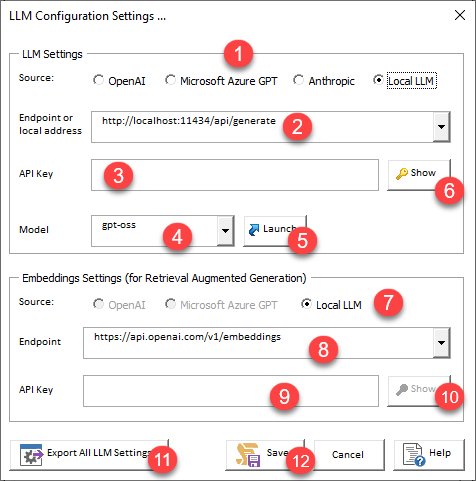
- Specifies whether to use cloud-based LLMs (i.e., OpenAI's, Microsoft Azure OpenAI, or Anthropic), or a local/private LLM server. For OpenAI, Azure, and Anthropic LLM services, ClaimMaster has configured stateless, private LLMs to use for its customers as default and you can also specify your own endpoint. Use local LLM option when connecting ClaimMaster to a local Windows LLM application, such as Ollama.
- Azure GPT endpoint or local LLM server address (if source is set to 'Local LLM"):
- Here you can specify your own Azure end-point to use with ClaimMaster if you have a separate agreement with Microsoft Azure in place and have configured a private GPT service. For Azure GPT access, the endpoint should specify the full address, such as https://{YOUR_RESOURCE_NAME}.openai.azure.com/openai/deployments/{YOUR_DEPLOYMENT_NAME}/chat/completions?api-version=2024-02-01
- For local LLMs, the address could be a localhost address of the LLM server (you can use the pre-defined drop-down option), such as:
- http://localhost:11434/api/generate for Ollama
- http://localhost:1235/v1/chat/completion for LM Studio
- Consult your program's documentation for specific address instructions if using another LLM application.
- Note - this entry is not used for OpenAI GPT service.
- LLM API Key - specifies API key for accessing private cloud-based LLMs. If configured, this key is always stored in encrypted format by ClaimMaster on the local machine. Not used for local LLMs.
- Model for API access - specifies LLM model name for a custom OpenAI or Azure OpenAI's service or a local LLM. For Ollama/LM Studio, we recommend Llava3 or Mistral for text processing.
- Press this button to launch a local instance of the configured LLM model (Ollama only).
- Press this button to view the API key in plaintext.
- Specifies embeddings service for RAG. It can be either the cloud-based address (i.e., OpenAI's, Microsoft Azure OpenAI), or a local/private Ollama server. Notably, Anthropic does not have its own embedding source, so you can use either OpenAI, Azure, local embbeding services when using Anthropic.
- Lists the address for generating embeddings for RAG. Make sure that your embeddings are provided by the same service as your configured LLM source (i.e., OpenAI, Azure, Ollama). Anthropic does not provide its own embeddings service, so either OpenAI, AzureOpenAi, or a local LLM service (i.e., Ollama) can be used instead for generating embeddings for populating the RAG database.
- For OpenAI, the embeddings source location is normally: https://api.openai.com/v1/embeddings
- For Azure GPT, the embeddings source would be located at https://{YOUR_RESOURCE_NAME}.openai.azure.com/openai/deployments/{YOUR_DEPLOYMENT_NAME}/embeddings?api-version=2024-02-01
- For Ollama, it would be http://localhost:11434/api/embeddings
- Embeddings API Key - specifies API key for accessing private cloud-based LLMs when generating embeddings. The key only needs to be specified if you've configured Antrhopic as the LLM service and want to use a private OpenAI or Azure OpenAI service for generating embeddings. You can also use the default OpenAI service provided by ClaimMaster for embedding generation - in this case, leave this field and embeddings endpoint field (item 10) blank. If a separate API key is configured, this key is always stored in encrypted format by ClaimMaster on the local machine. Not used for local LLMs.
- Press this button to view the embeddings API key in plaintext.
- Click this button to export all of your LLM settings to a cm_setting_extra.txt file, which can then be deployed for other users (or using during silent installation). For more information about extra/custom settings, see silent installation instructions with EXTRASETTINGSPATH flag.
- Click this button to save your information.