Using AI to analyze Office Action
Using AI to Analyze OA Rejections [+Drafting versions]
ClaimMaster lets you quickly analyze rejections in the Office Action using one or more pre-configured LLM templates. In addition to the prompt, ClaimMaster will pass the relevant content of the OA, prior art, and claims to the LLM. The LLM prompt is up to you, but at a minimum, you can ask the configured LLM to summarize the rejections in the OA, analyze each cited reference and how the Examiner is using it, explain the Examiner's reasoning and mapping of prior art to claims, identify gaps or errors in the Examiner's analysis, and provide recommendations (e.g., claim amendments, arguments) for overcoming the rejection.
Getting Started
- From the AI Analysis Tools section in the OA Browser or OAResponse Assistant, select one of the following options:
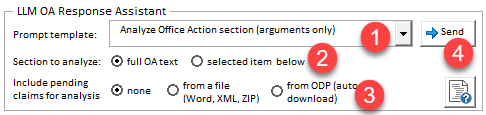
- This menu lets you specify one of the pre-configured LLM analysis templates to be used for OA analysis. The specific LLM prompts may wary. For example, you could have several different prompts configured to summarize the rejections in the OA, analyze each cited reference and how the Examiner is using it, explain the Examiner's reasoning and mapping of prior art to claims, identify gaps or errors in the Examiner's analysis, and provide recommendations, such as arguments or claim amendments for overcoming the rejection. etc. For the LLM template to show up in the dropdown, its OAR template flag set must be set to true, as shown below.

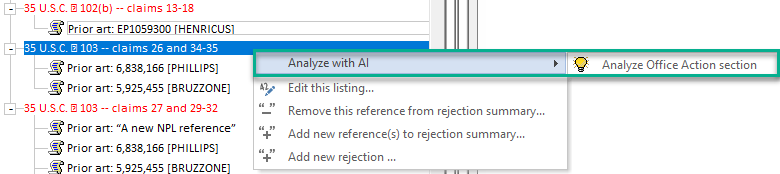
- Specifies whether the analysis will apply to the entire OA text or just a particular rejection section selected in the OA Browser. You can also launch the same action by right-clicking on a specific rejection in the OA Browser or OAR Assistant and picking one of the OAR analysis templates from the drop-down menus under Analyze with AI:
- Specifies whether claims should be included/download as part of prompt sent to the LLM.
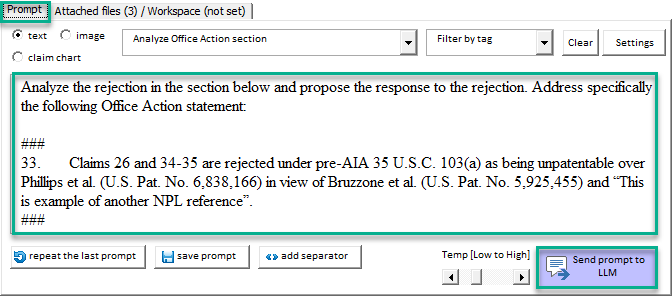
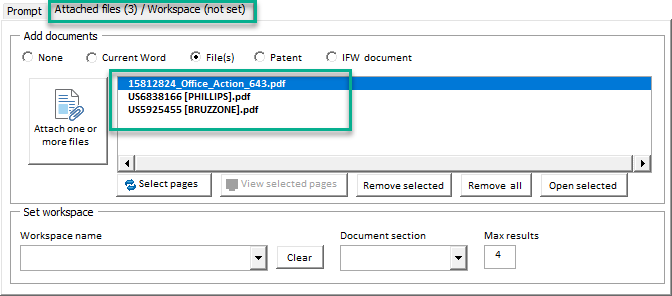
- When you click "Send", ClaimMaster will collect the relevant OA prior art, claims (if specified), and Office Action and bring up the LLM chat tool with the prompt template that you've selected, along with all the attached documents. Where possible, ClaimMaster will try to obtain plain text copies of the cited prior art documents. In some cases, ClaimMaster will also annotate US patent with column and line numbers. You can edit the prompt directly in the window and then click "Send prompt to LLM" once you finalize it.
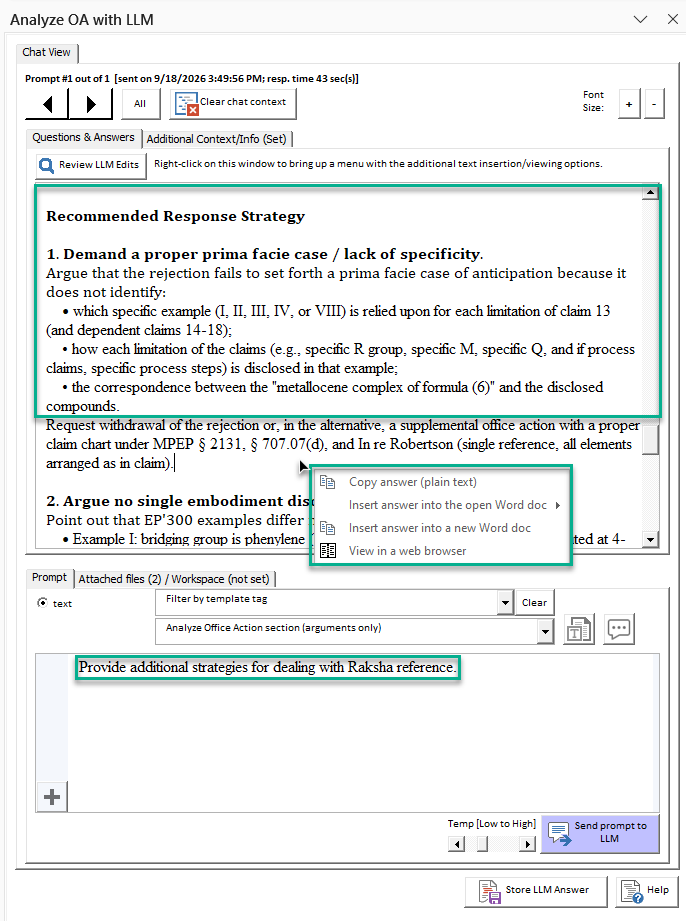
- Once you get the response back from the LLM, you can also continue the chat to refine or re-focus its answers. Once you are satisfied with the result, you you can right-click on the Questions & Answers window to insert the answer into the open Word document or into a new document. LLM answers will be inserted with text annotations (e.g., bold, underline, strike through, etc.). You can also click on "Store LLM Answer" to reuse the OA as part of the OA shell generation or in OAR Assistant (the contents of the answer will be inserted for the [LLM_ANSWER] replacement field.