Generating images with LLMs
Generating PNG Images with LLMs
You can use ClaimMaster to generate PNG images if the LLM model you are using has image generation capabilities (e.g., GPT-4o). To generate images using prompts, make sure your prompt type is set to "image". When this option is selected, you'll also see an extra tab where you can set file output settings, such as output directory for the images. Notably, once you generate a particular image with the LLM, you can provide follow-up prompts to re-edit/regenerate it to better suite your needs. In addition, you can attach files to your prompt and ask the LLM to redraw/re-edit them.


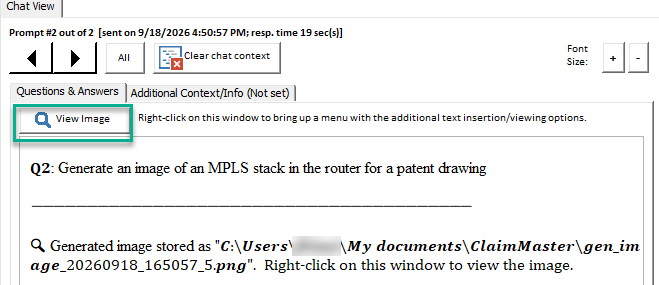
Once the LLM generates the image, it will be opened in your default image program. In addition, you can re-open the image for any of your previous prompts by navigating to that prompt in the Questions & Answers tab and clicking on View Image button.
Generating SVG Images with LLMs
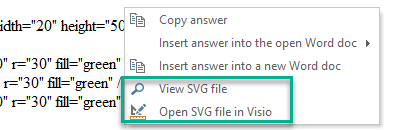
While AI-generated PNG patent images may look nice, they are currently hard to edit and do not import well into Visio or other CAD programs. As an alternative, you can try asking the LLM to generate an SVG image in plain text. SVG is short for "Scalable Vector Graphics", an XML-based image format that describes two-dimensional vector graphics like logos, diagrams, and charts. Its main benefit is that images can be scaled up or down infinitely without losing quality because they are based on mathematical equations rather than pixels. SVG files can be viewed in browsers or edited in design software like Visio. This functionality is somewhat limited in the current LLMs, but we expect it to improve in the future.
When generating an SVG image, make sure your LLM prompt type is set to "text":

After LLM generation, the XML definition of the SVG image will be shown as text in the Questions & Answers section, so that you can right-click on it to view it in the default browser or export it to Visio, where it can be further edited.