LLM proofreading
Configuring LLM proofreading (Optional)
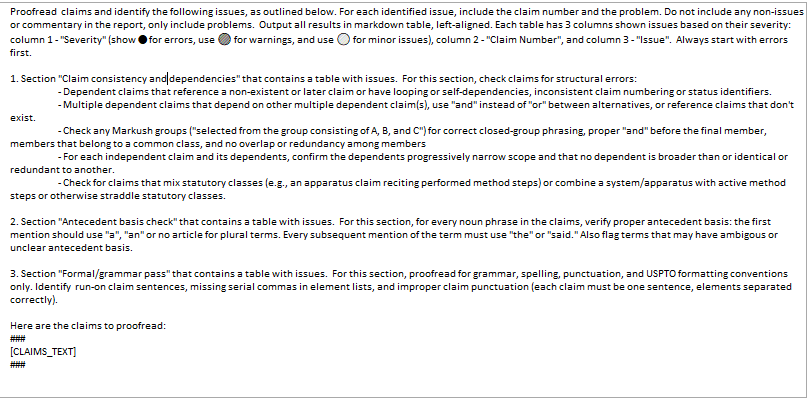
You can now configure ClaimMaster to run additional proofreading on the document using the configured LLM service/model (e.g., OpenAI, Anthropic, local instance, etc.) and specific patent proofreading prompts. While LLMs might not catch the same issues as ClaimMaster, they can still provide a second line of defense against certain logical and grammatical issues in patent documents. If this option is enabled, ClaimMaster will send prompts that contain instructions for the configured LLM to check for certain types of issues and can be supplemented with additional information from the specification, such as claims or specification text. The following replacement fields are available for various editable patent proofreading prompt templates, such as the one shown below:
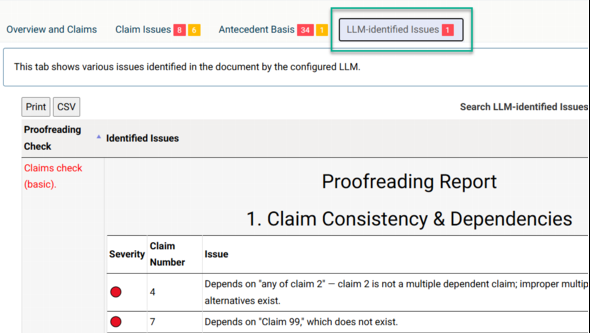
NOTE: LLM proofreading must be centrally enabled for your license if you have QA, Pro, or Pro+Shells subscription. Contact [email protected] to have this feature complimentary turned on for your license. Pro+Drafting and Pro+Shells+Drafting users do not to contact us to have this feature enabled, as its included with their subscriptions. If LLM proofreading is enabled, you will see the "LLM-identified Issues" tab in all formats of the generated all-in-one reports.
Getting Started
To enable LLM proofreading for all-in-one reports, perform the following steps:
- In Word 2007 or later, from the ClaimMaster Ribbon, click on the Preferences, Extra Tools, Help menu, then Preferences menu.

- Next, switch the "Patent Proofreading" tab and click on "Enable LLM Proofreading" button. Note -if you have QA, Pro, or Pro+Shells subscription, enabling this feature requires the LLM proofreading to be centrally enabled for your license. Contact [email protected] to have turned on for your license. Pro+Drafting and Pro+Shells+Drafting users do not to contact us to have this feature enabled, as its included with their subscriptions.

Once LLM proofreading is enabled for your license, you can turn it on for all-in-one reports and also configure the desired LLM service and customize LLM prompts used for proofreading:

- Click on "Use configured LLM service for proofreading" to actually enable/disable LLM proofreading for all-in-one reports. If enabled, the contents of your document will be sent to the configured LLM service with the specific proofreading prompt that you can configure.
- Lets you configure the desired LLM service and settings.
- Lets you edit LLM prompt templates for proofreading.